A YouTube title can be up to 100 characters long, but only about the first 60 reliably show in mobile feeds. That gap is the whole game: a title that gets clicks puts the topic and the payoff in those first few words, makes a promise the video keeps, and reads like something a person would say.
This blog covers the limit and what YouTube Studio does when you break it, which characters it rejects (we tested), seven ways to write better titles, real before-and-after examples scored by our AI Title Generator, the titles that get you in trouble, and how to A/B test titles inside YouTube Studio.
The YouTube title character limit
The hard limit is 100 characters, including spaces (YouTube Help). YouTube Studio counts as you type and shows the total under the Title box.
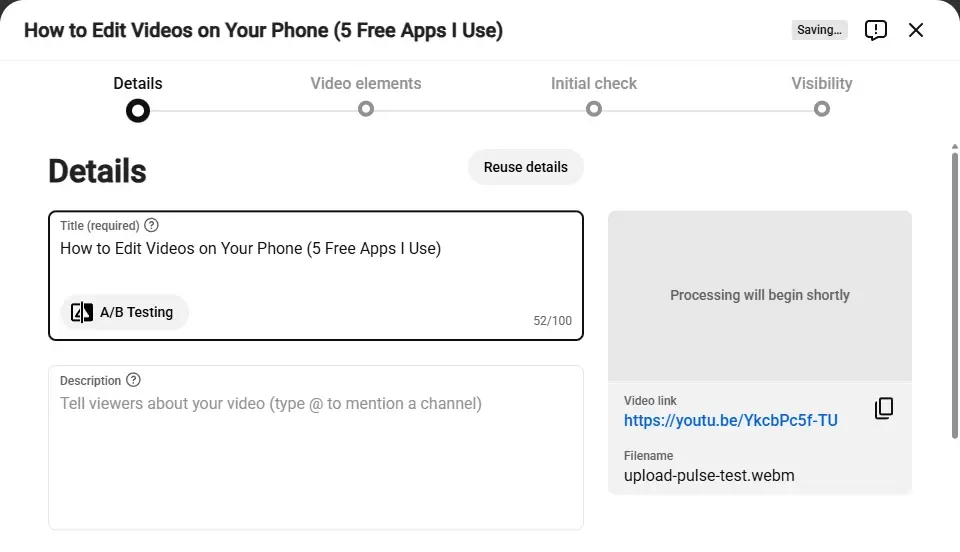
- 1The Title box (required)
- 2Character counter: 52 of 100 used
- 3A/B Testing for titles
Go one character over and Studio stops you. At 101 characters the counter turns red, a "Your title is too long" message appears, and the Next button is disabled until you cut it back.
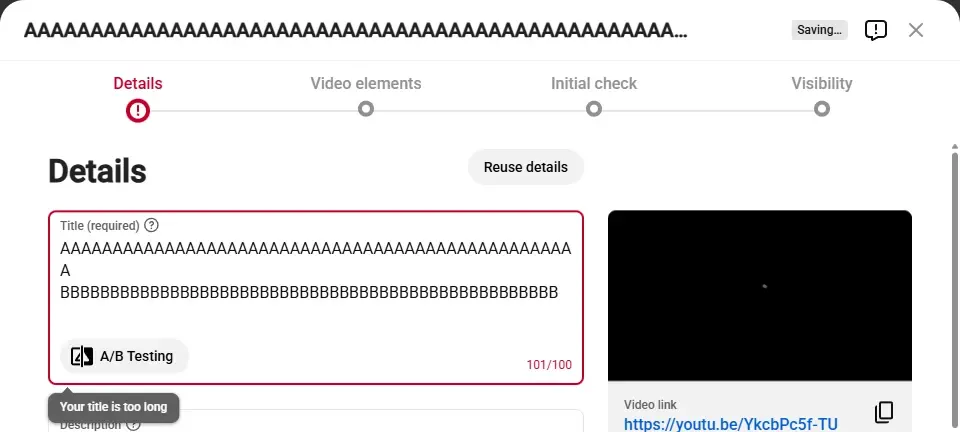
- 1Counter at 101/100
- 2"Your title is too long"
How much of a title actually shows
The 100-character limit is what you can save, not what people see. Feeds cut long titles off, and how much fits depends on the screen and where the video appears. Our working figures, which the AI Title Generator also uses, are about 60 characters in mobile feeds and about 70 on the desktop home page.
Here's how a mobile feed would show a long title, cut at about 60 characters, and the same idea rewritten so the important words come first:
- Before (85 characters): "I Tried Every Free Video Editing App on My Phone for 30…"
- After (70 characters): "Best Free Video Editing Apps for Phone: I Tested Every One…"
The rewrite is still cut, but what's cut is the least important part. Someone scrolling past already knows the topic and the promise.
Which characters YouTube won't accept
YouTube's Help Center says titles can't contain "invalid characters" but doesn't list them, so we tested a set of common symbols in YouTube Studio. Only angle brackets were rejected. Typing < or > shows "Angled brackets aren't allowed" and disables Next.
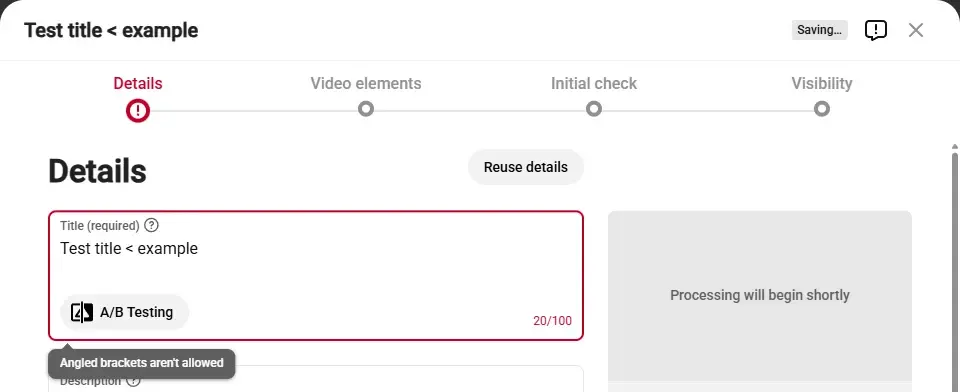
- 1The Details step shows an error
- 2"Angled brackets aren't allowed"
Everything else we tried was accepted: &, #, double and single quotes, |, /, \, *, square brackets like [4K], and emojis. An emoji counted as one character on Studio's counter, though it takes up roughly two letters' worth of space on screen, so it shortens how much of your title fits.
What a good title does
A title has two jobs: tell the right viewer what they'll get, and give them a reason to choose your video over the others next to it. Everything else is technique.
That means a good title is specific ("5 Free Apps", "$600 Build", "20 Minutes") rather than vague ("My editing setup"), and honest: the video has to deliver what the title promises. A title that earns a click and then disappoints teaches viewers to skip you next time.
7 ways to write titles that get clicks
- Put the topic in the first few words. People search with keywords, and mobile feeds cut titles at around 60 characters. "Budget Gaming PC Build for $600" works on both counts; "I finally did it: my budget gaming PC build" buries it.
- Use a specific number. Prices, counts, durations and results ("5 Apps", "30 Days", "$600") make the promise concrete, and they stand out in a list of text.
- Name the payoff. Say what the viewer gets: faster, cheaper, easier, a result, a mistake avoided. "No Mixer Needed" tells a beginner baker this is for them.
- Add a bracket for context. A short note in brackets, like "(Tested in 5 Games)" or "(Beginner Guide)", adds proof or audience without cluttering the main title.
- Write for how people find the video. For search, use the words people type. For the home feed and suggested videos, where nobody is searching, curiosity and a clear benefit matter more.
- Make the title and thumbnail work together. Don't repeat the same words in both. Let the thumbnail show the moment and the title supply the specifics.
- Write like a person, not a headline machine. Skip all-caps words, stacked exclamation marks and phrases like "you won't believe". They read as clickbait and many viewers scroll past.
Before and after: real titles, scored
These rewrites were scored by our AI Title Generator, which checks six things: the keyword's position, length, a number, a strong word, a bracket and signs of clickbait. Each "before" is a real kind of title creators use; each "after" applies the tips above.
The pattern is consistent. The weak titles either say nothing about the topic, shout, or run so long the point gets cut off. The strong ones name the topic early, add a number or a concrete detail, and stay between about 50 and 60 characters. A score is a checklist, not a guarantee: it tells you a title is well built, and only real viewers tell you whether it works.
Titles that get you in trouble
There's a line between a compelling title and a misleading one, and YouTube draws it in its spam, deceptive practices and scams policy. It prohibits using "maliciously misleading titles, thumbnails, descriptions, or imagery to trick users into clicking". Its example is a title that offers a full sports match when the video shows only a clip (YouTube Help).
The safe test is simple: would a viewer who clicked feel the title told the truth? Curiosity is fine; a promise the video doesn't keep is not. The same policy covers metadata more broadly. For example, pasting long lists of keywords into a description counts as spam, which our guide on whether YouTube tags still matter covers in detail.
Test your titles with A/B testing
You don't have to guess which title is best. YouTube Studio's A/B Testing (YouTube calls the feature "Test & compare") lets you run up to three titles on the same video, or three thumbnails, or title and thumbnail pairs (YouTube Help). Click A/B Testing under the Title box on a video's Details page to set one up.
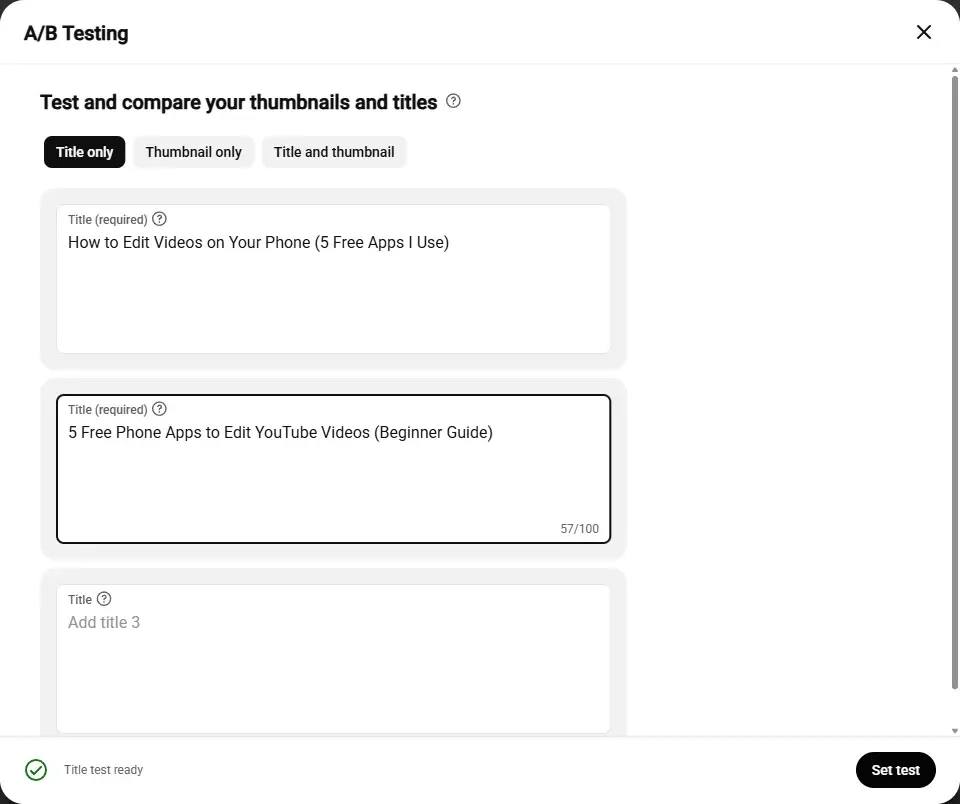
- 1Test titles, thumbnails, or both
- 2Title A: your current title
- 3Title B (a third is optional)
- 4Set test starts it
A few things worth knowing before you start:
- The winner is picked by watch time, not clicks. YouTube compares each version's share of watch time, so a clickbait title that gets clicks but loses viewers won't win.
- Tests take time. They can finish in a few days or run up to two weeks.
- You need advanced features turned on, and tests run on desktop only. Shorts, scheduled live streams and Premieres can't be tested.
A 2-minute title checklist
Before you publish, run through this list:
- The topic or main keyword is in the first few words.
- The title is under 100 characters, and the key point fits in the first 60.
- It includes a specific number or detail where one fits.
- It says what the viewer gets.
- There are no all-caps words, stacked "!!" or bait phrases.
- The title and thumbnail add to each other instead of repeating.
- The video delivers exactly what the title promises.
Titles can be changed at any time after publishing, so an old video with a vague title is worth revisiting. To see how a published video's title, description and tags hold up together, paste its link into the Video SEO Checker. And if you're setting one up now, our guide on how to upload a YouTube video walks through every screen, title box included.