
To add chapters to a YouTube video, put a list of timestamps with titles in the video's description. The first must be 00:00, you need at least three in order, and each chapter must run for at least 10 seconds. Get all three right and YouTube splits the progress bar into labelled sections viewers can jump between. Get one wrong and nothing happens, with no error message.
This blog covers the rules, a step-by-step walkthrough, what chapters look like to viewers, automatic chapters, and a checklist for fixing chapters that won't show.
The rules chapters must follow
YouTube's Help Center sets three rules for manual chapters, and all of them have to be true at once:
Three rules, all at once
- Step 1Start at 00:0000:00The first timestamp must be zero. 00:05 won't work.
- Step 2At least three3+Listed in ascending order, each later than the one before.
- Step 310 seconds or longer10sNo chapter can be shorter than ten seconds.
Two account conditions apply too. The channel needs advanced features (YouTube points creators without chapter access to apply for them), and chapters aren't available on channels with active strikes or on videos that may be inappropriate for some viewers.
How to add chapters, step by step
You can add chapters while uploading, or to a video that's already live:
- Open YouTube Studio and select Content in the left-hand menu.
- Click the video to open its Details page. (While uploading, you're already on it.)
- In the Description box, add your timestamps, one per line, each followed by a chapter title.
- Click Save.
Here's what that looks like in YouTube Studio:
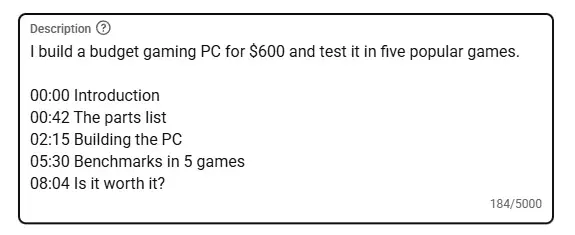
- 1The first timestamp is 00:00
- 2At least three, in order, 10+ seconds apart
A few formatting habits make chapters reliable:
- Use minutes and seconds like
05:30for most videos, or hours, minutes and seconds like1:02:10for videos over an hour. - Put each timestamp at the start of its own line, followed by the chapter title.
- Keep the list together. It can go anywhere in the description, and the rest of the description stays as it is.
What chapters look like to viewers
Once they're working, chapters change the player itself. The progress bar splits into segments, hovering over the bar shows each chapter's title, and the current chapter's name appears next to the time. Viewers can click it to see the full list.
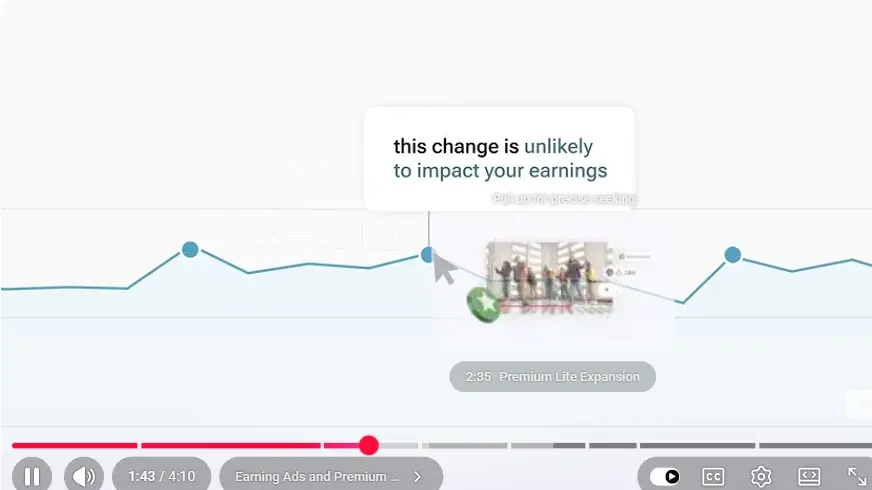
- 1The progress bar, split into chapters
- 2Hovering shows a chapter's title
- 3The current chapter; click it for the full list
That's why chapters help longer videos: viewers can see the outline before committing, and skip straight to the part they came for.
Automatic chapters
YouTube can also create chapters for you. When Allow automatic chapters is ticked, YouTube may add chapters to a video that doesn't have its own. It's ticked by default for new uploads, and you'll find it under Show more on the Details page:

- 1On by default for new uploads
Your own timestamps always win: as Studio puts it, you can overwrite automatic suggestions by creating your own chapters in the description. Not every video is eligible for automatic chapters, and an eligible video may still not get them, so they're a fallback rather than something to rely on.
To turn them off:
- For one video: open it in YouTube Studio, click Show more, untick Allow automatic chapters, and save.
- For all future uploads: go to Settings → Upload defaults → Advanced settings and untick Allow automatic chapters and key moments.
Why your chapters aren't showing
If you've added timestamps and nothing appears on the progress bar, work through this table. It's almost always one of these:
All the rules apply together. Fixing one problem won't help if a second one is still there, so check the whole list rather than stopping at the first issue you find. Our guide on checking monetization eligibility shows where to find the Feature eligibility setting.
Check any video's chapters
The quickest way to see whether a video's timestamps actually qualify is the Description Viewer. Paste a video link and it pulls out the full description, splits out the chapters, and says whether they're valid. If they aren't, it names the first rule that's broken:
It's also a good way to study how other creators structure their videos: a chapter list is a creator's own outline of what viewers want from the video.
Writing chapter titles viewers use
Chapters only help if the titles tell people where to go:
- Describe what happens in the section, like "Battery life test", not "Part 3".
- Keep titles short so they fit on the progress bar, especially on phones.
- Use the words viewers would search for. If people want the "low-light footage" section, call it that.
- Don't over-split. A chapter every 20 seconds makes the bar harder to use, not easier. Aim for the natural sections of the video.
Adding chapters to older videos
You don't have to limit chapters to new uploads. Older videos that still get steady views are often the best place to start, because the benefit reaches viewers straight away.
Pick your most-watched long videos, add a chapter list to each description, and save. It's one of the quickest improvements you can make to a back catalogue, and nothing needs to be re-uploaded. While you're there, the Video SEO Checker shows how the rest of the video's title, description and tags hold up, and our guide on how to upload a YouTube video covers every other setting on the Details page.